
Room calendars are available for staff to reserve select rooms and common spaces. To view the current reservations for a room or space, please see How do I open a room calendar in the Outlook desktop app?
Most are now available for self-service bookings via Outlook, with the exception of a few high-volume or shared spaces (e.g., Secondary Gym, PAC, St. Pauls Chapel, Board Room, Main Admin Meeting Room, etc.)
How to book a room via the classic Outlook desktop app
1. Open the calendar view and click "New Appointment" or "New Meeting" ensuring your personal calendar is selected.
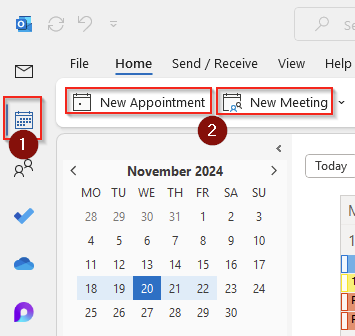
a. Appointments are calendar events that do not require invitations to be sent to "attendees". This will not send a calendar invite to anyone. If you wish to invite specific attendees, create a meeting instead.
b. Meetings are calendar events that do send invitations to "attendees". This is useful if you need to confirm attendance of particular individuals, and if you want the attendees to be able to track this event on their personal calendars.
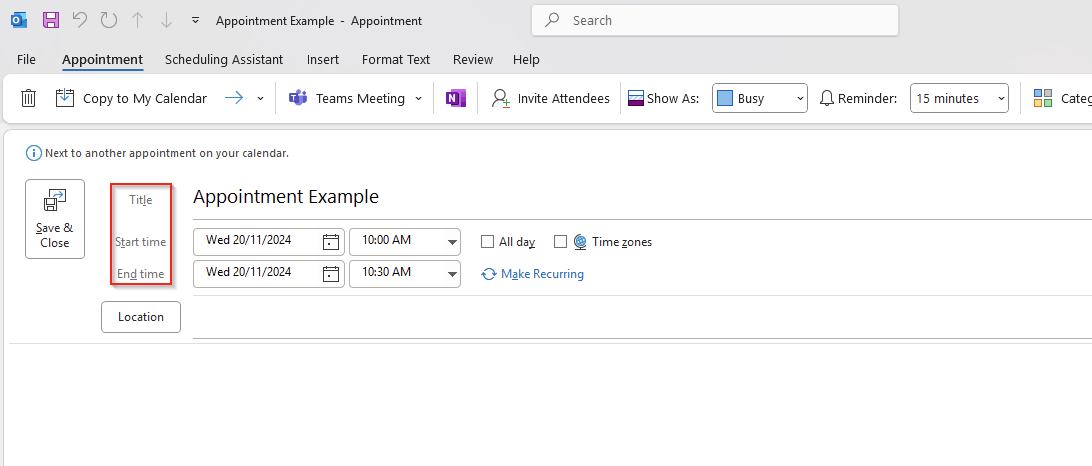
2. Enter your event details, including title, start time, end time, etc. Save this
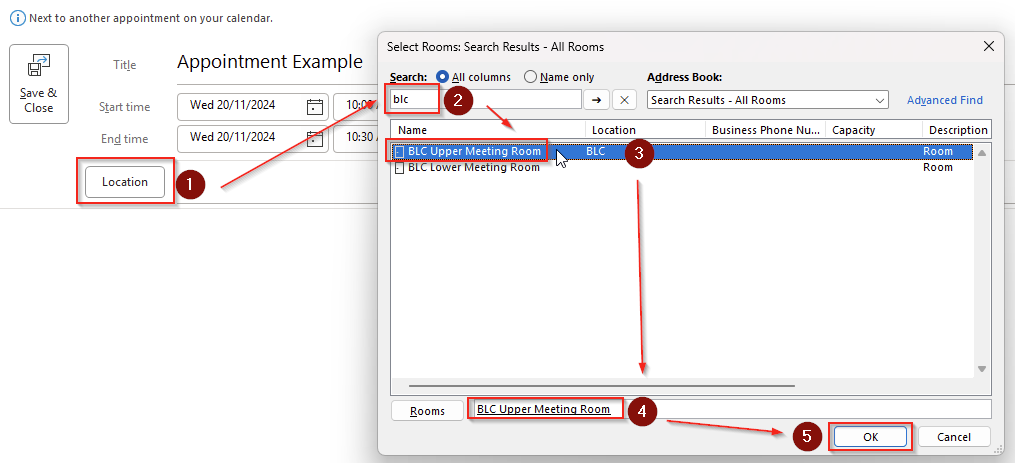
3. In the location field, click the "Location" button and select from any of the available rooms, or start typing a room name into the field and select from the auto-fill options.
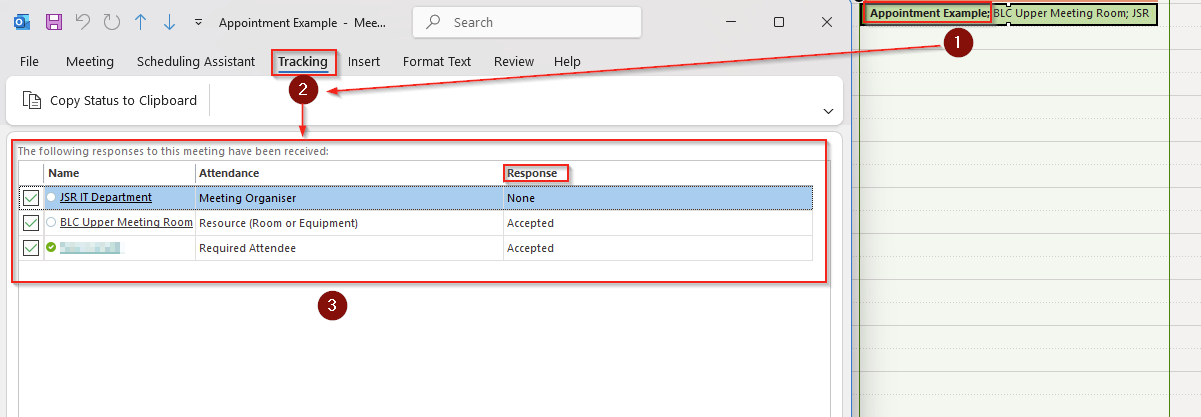
4. Confirm your booking has been accepted by viewing the status of the attendees in the calendar event, or viewing the email response from the room calendar.
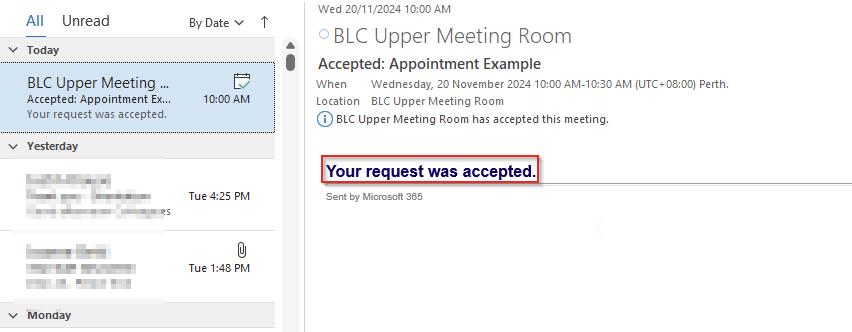
NOTES:
- Not all rooms are available for self-service bookings. If you have selected a room that does not accept self-service bookings, your event will automatically be rejected by the room calendar. In these cases, please contact the Community Relations & Communications team, or other approved room delegates.
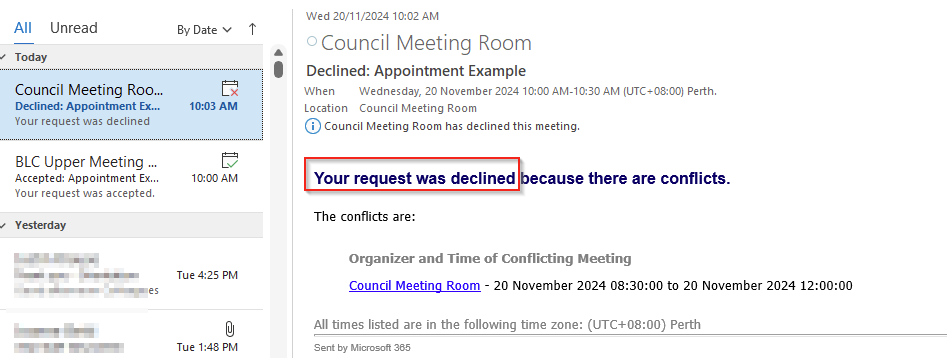
- In some cases, your booking may require approval from a room calendar delegate. This is only the case if the booking is made outside of 6AM - 6PM, if the event is recurring, or for certain rooms. In these cases, you won't receive an automatic reply until the delegate has approved or denied the booking.
How to book a room via the new Outlook desktop app
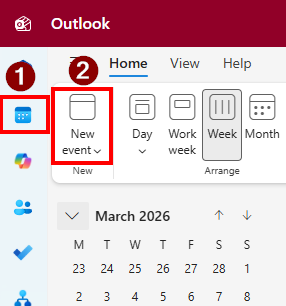
1. Open the calendar view and click "New event" ensuring your personal calendar is selected.
2. Enter your event details including title, required attendees, start time and end time. Select the required room, then click "Save".
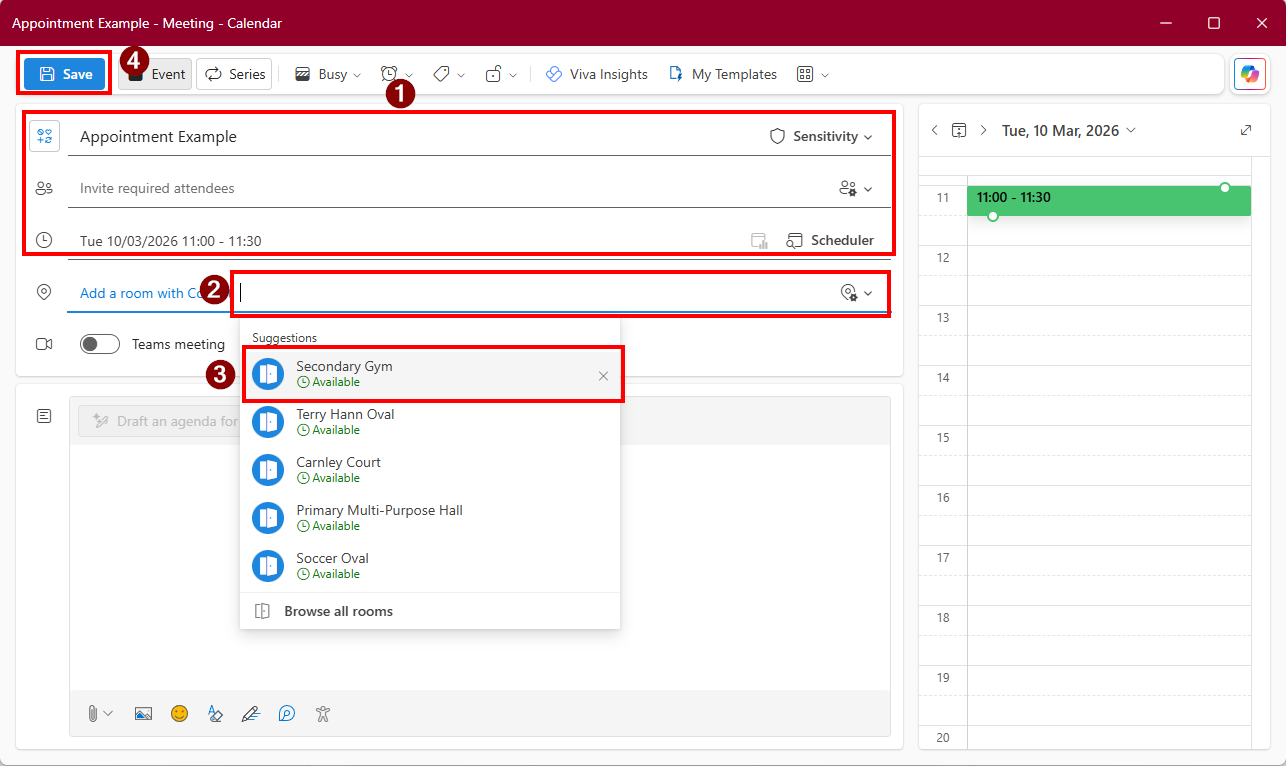
Similarly to the above instructions, you will receive an email notifying you if the request was approved or decline.