Room calendars provide a mechanism for creating and managing bookings for supported rooms. All staff have reviewer permissions assigned to most room calendars allowing you to see existing reservations.
If you wish to book a room, please see How do I book a room?
How to open a room calendar via Classic Outlook Desktop App
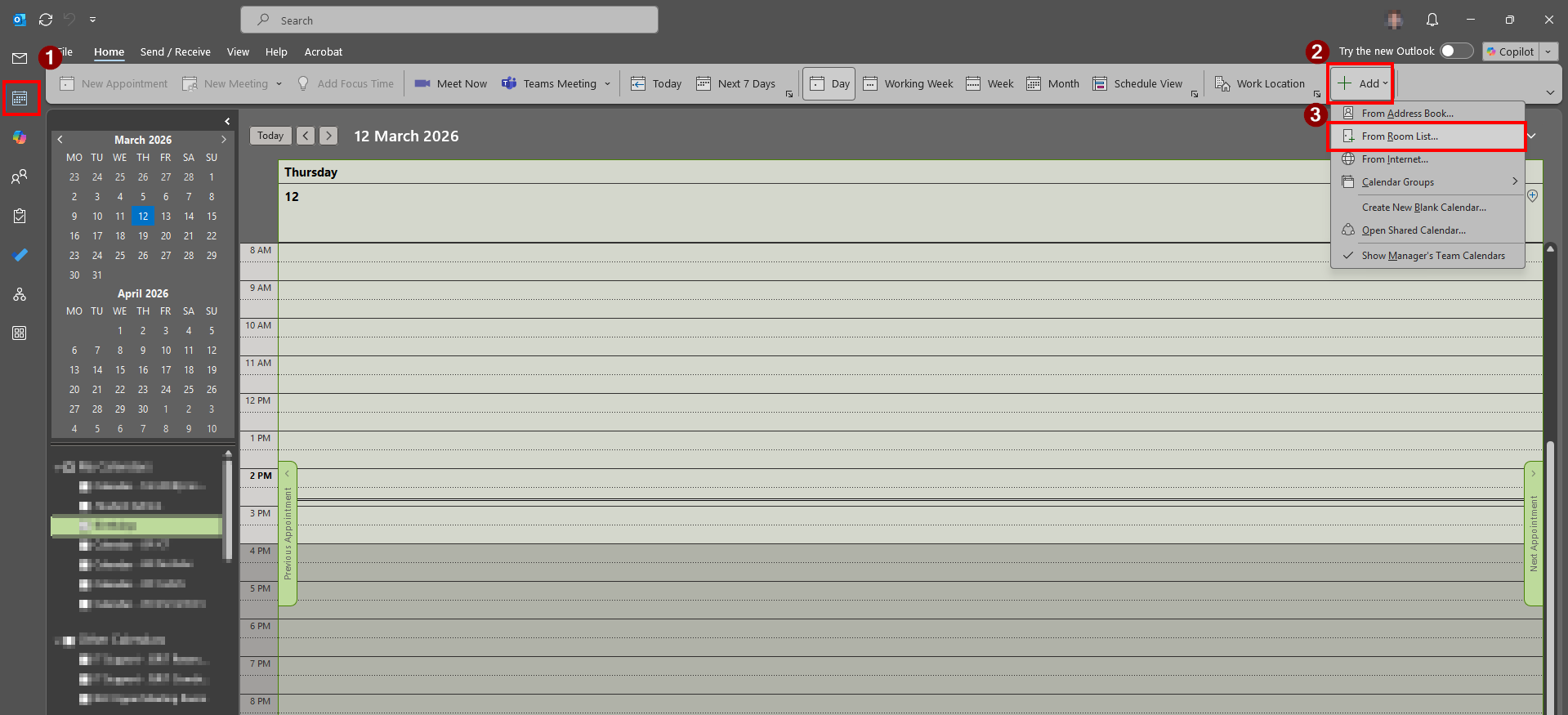
1. Click on the calendar icon in the top-left corner of the screen to change to calendar view.
2. Click on the "Add" button.
3. Select "From Room List..." from the list of available options
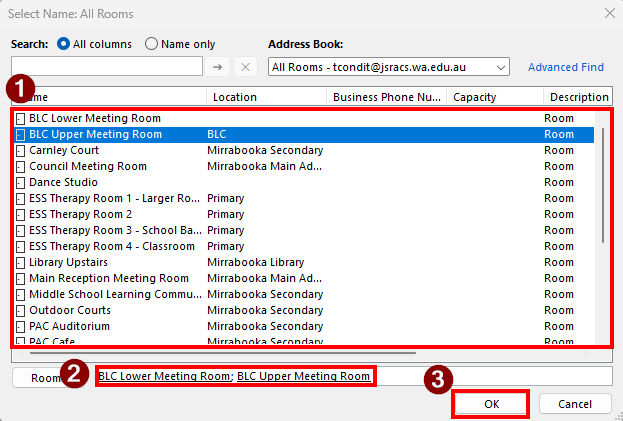
4. In the dialog menu, select as many room calendars are you like by double clicking the calendar. Once you have selected a calendar, you should see the room listed in the textbox at the bottom of the menu.
5. Once you have selected all the applicable calendars, click "OK".
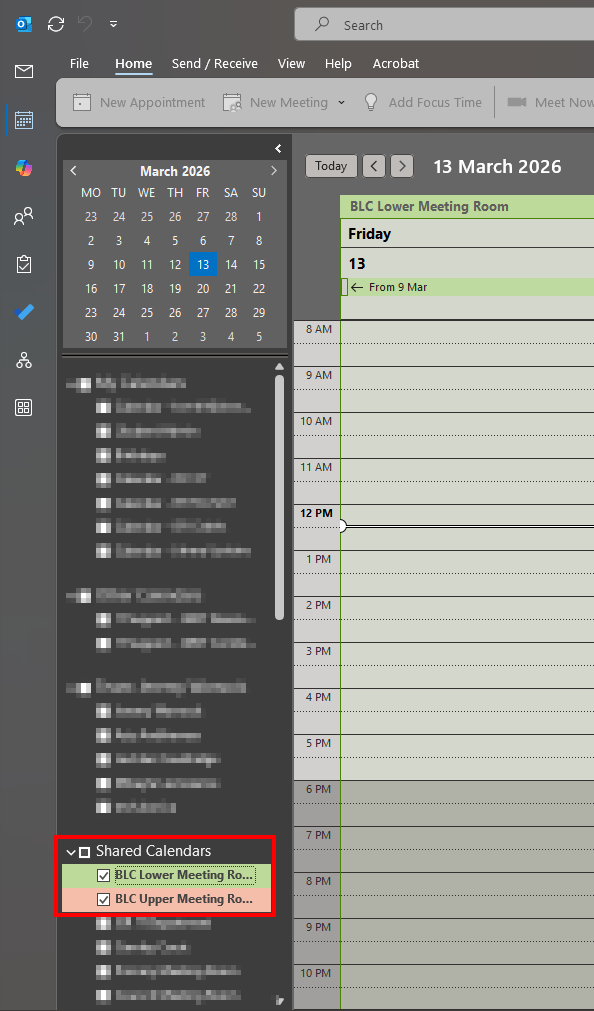
6. The calendars should now be listed in your calendar view. Ensure you use the checkbox to show/hide the calendars as you use them.
The calendars may automatically be grouped with other room calendars, or added to the "Shared Calendars" group. Feel free to create your own calendar groups and rearrange the calendars as you see fit.
How to open a room calendar via New Outlook Desktop App
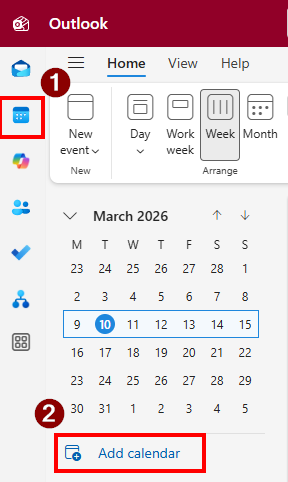
1. Open the calendar view then click "Add calendar".
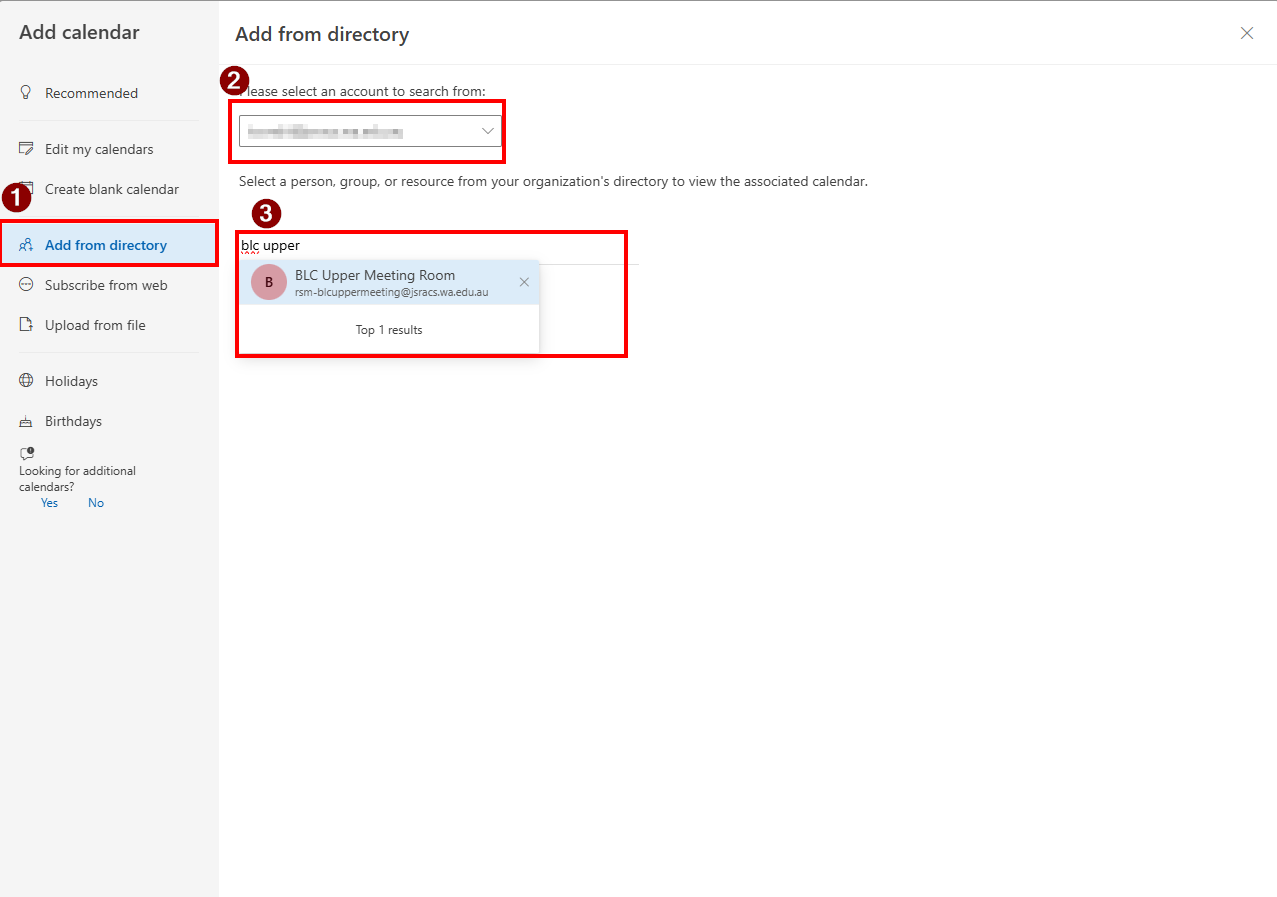
2. Click on "Add from directory", then under "Please select an account to search from:", select your email account from the drop-down menu. Then search for and select the room you require.
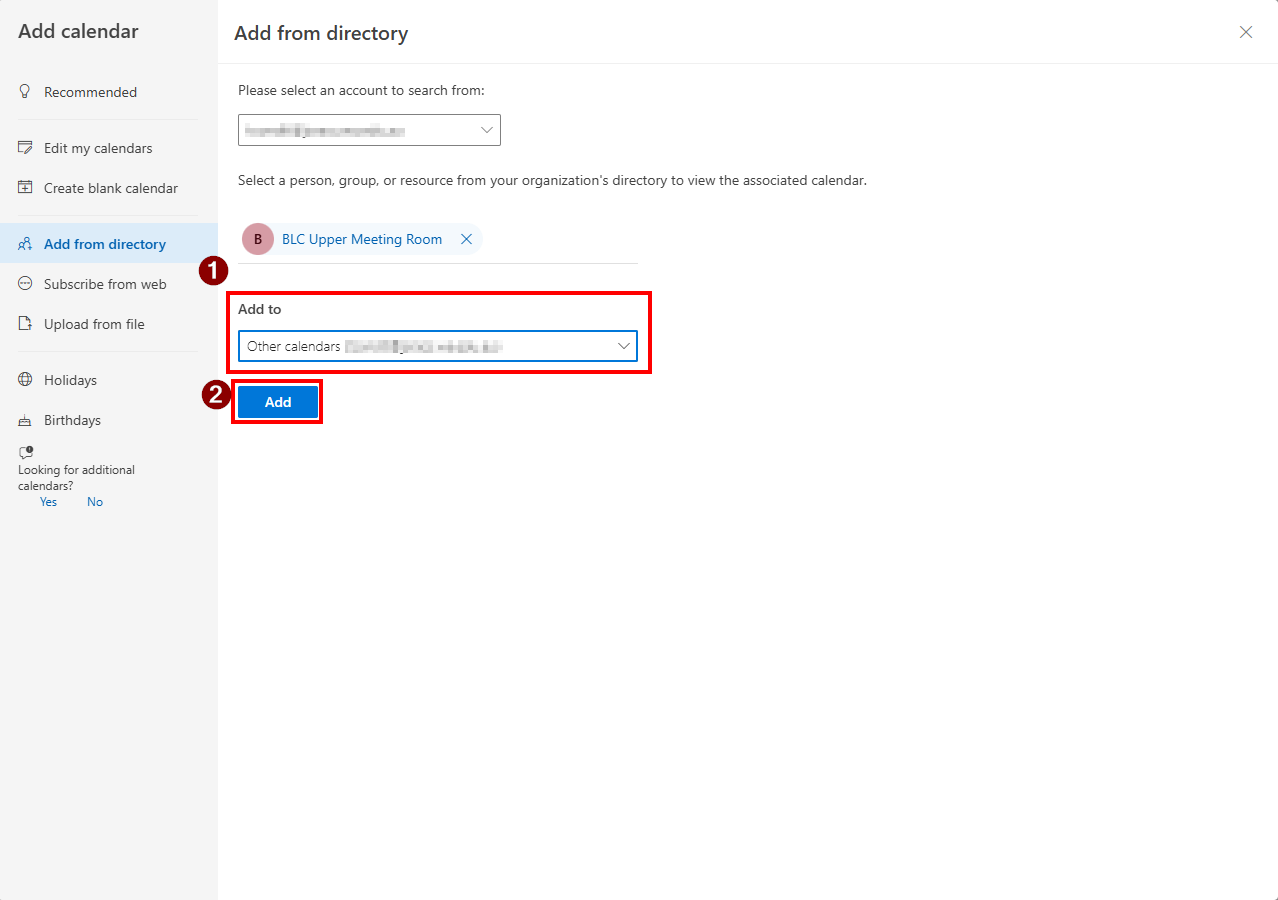
3. Under the "Add To" option, select "Other calendars", then click "Add"
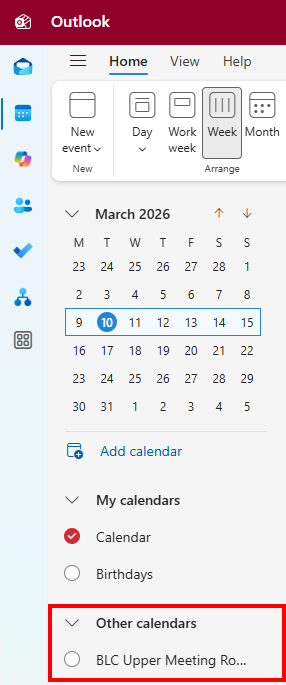
4. The room calendar should now appear in your calendar view.