
If your laptop is not displaying correctly on a monitor, projector, TV or wireless display, there are a few simple checks you can try before contacting the ICT Helpdesk. Display issues are often caused by a loose cable, an interrupted wireless connection or incorrect display settings.
Note: If you are using a docking station, the troubleshooting steps above still apply. Please also check that the dock is securely connected to your laptop and that all display cables are firmly connected to the dock and neither are damaged.
All available devices will be shown under 'Available Displays'
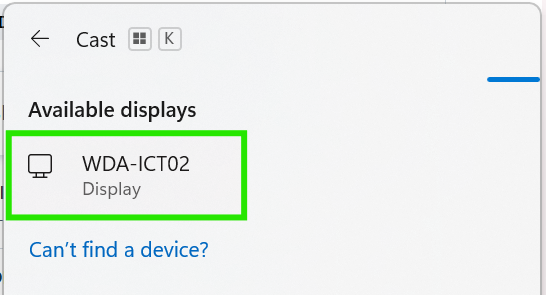
Wireless - Basic Troubleshooting Steps.
- Check that the monitor, projector or display is turned on and on the correct source (WDA is usually HDMI1)
- Ensure WDA (Wireless Display Adaptor), is plugged in and showing a 'Ready to Connect' screen.
- Turn the TV off and on and restart your laptop.
Wired - Basic Troubleshooting Steps.
- Ensure that cables are securely connected on both ends (Laptop and TV)
- Check that the monitor, projector or display is turned on and on the correct source (HDMI is usually HDMI2).
- Restart your laptop.
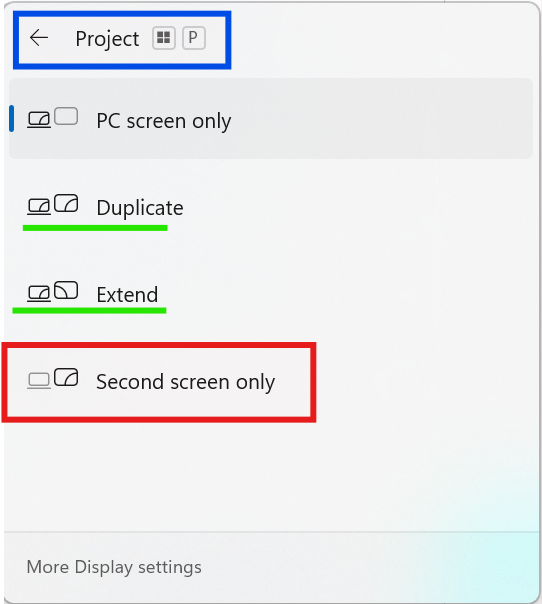
Connected devices - Press Windows Key + P and choose:
- Duplicate: to show the same screen on both displays.
- Extend: to use the second display as extra screen space.
- Second Screen Only: Disables the laptop screen
Contact ICT If
- The display is still not detected.
- The screen is flickering or cutting in and out.
- There is no image despite trying different cables or displays.
- The Wireless Display Adaptor still does not appear for connection.
- You receive error messages when attempting to connect.
If the issue continues, please contact the ICT Helpdesk and advise which troubleshooting steps you have already completed.