
If your laptop trackpad is not moving the cursor or responding to clicks, there are a few simple checks you can try before contacting the ICT Helpdesk. Many trackpad issues can be fixed by restarting the laptop or checking that the trackpad has not been accidentally turned off.
Quick Troubleshooting Steps
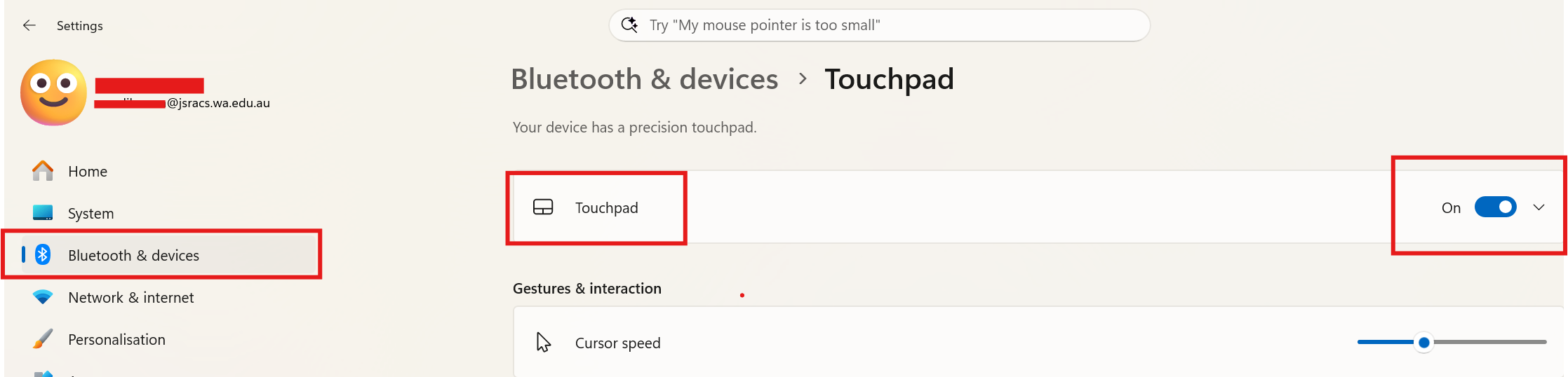
- Open Settings > Bluetooth & devices > Touchpad and confirm the touchpad is switched on.
- Check Keyboard shortcuts - F6 for Asus devices / F7 for Acer devices
- Check if an external mouse is connected. If so, disconnect it and test the trackpad.
- Try pressing the trackpad firmly to check if it is responding.
- Save your work and restart the laptop.
Contact ICT If
- The trackpad is still not working after trying the steps above.
- The trackpad works intermittently / Clicking or tapping does not respond.
- The trackpad is physically damaged.
- The cursor moves on its own.
If the issue continues, please contact the ICT Helpdesk and let them know which troubleshooting steps you have already completed.