
Adobe Sign is a licensed service that incurs ongoing costs, with charges applied based on the number of signature transactions used. As a result, access is restricted to approved staff members whose roles require the use of electronic signatures for business purposes.
Staff requesting access to Adobe Sign must obtain approval from their Head of Department (HOD) or a member of the Executive Team before ICT can assign a license. All requests submitted to ICT must include the approval and a business justification outlining the need for Adobe Sign.
Once approval has been received, ICT will assign an Adobe Sign license and notify the user when access is available.
- Approval from a Head of Department (HOD) or Executive Team member is required.
- Requests must include a business reason for access.
- ICT will assign the Adobe Sign licence once approval has been received.
- Users are responsible for using Adobe Sign in accordance with school policies and procedures.
Adobe sign is linked in with Adobe Acrobat desktop app but does have an online portal via the Adobe Sign website
Link Here.
How to Send a Document to Request an E-Signature in Adobe Sign (Desktop Version)
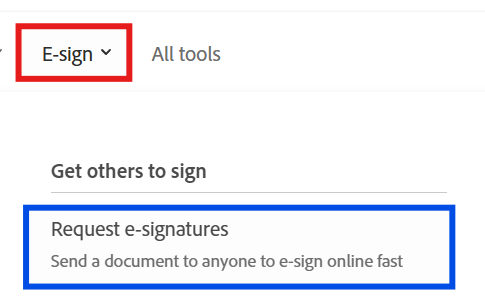
- Sign in to Adobe Sign using your JSRACS school account via the (More sign in options > Continue with Microsoft).
- Select the 'Use Now' under Request E-Signature from the home page.
- Click Select Files and upload the document requiring signatures.
- Enter the email address of each person who needs to sign the document.
- Add a message or instructions for the recipients .
- Review the document and place any required signature, date, or form fields.
- Select Send.
- Adobe Sign will automatically email the document to the recipients for signing.
- You can monitor the status of the document from the Manage section.
How to Check the Status of a Document
- Open Adobe Sign
- Select Manage All Agreements.
- Locate the document from the list.
- Review the status, such as:
- Waiting for Signature
- Completed
- Cancelled
- Expired
How to Download a Signed Document
- Open Adobe Sign.
- Select Manage All Agreements.
- Locate the completed agreement.
- Open the agreement.
- Select Download PDF.
- Save the file to the desired location on your device.