
If Outlook is running slowly or you are not receiving new emails, your mailbox may be close to its storage limit. You can check your mailbox storage at any time to see how much space is being used and remove items you no longer need.
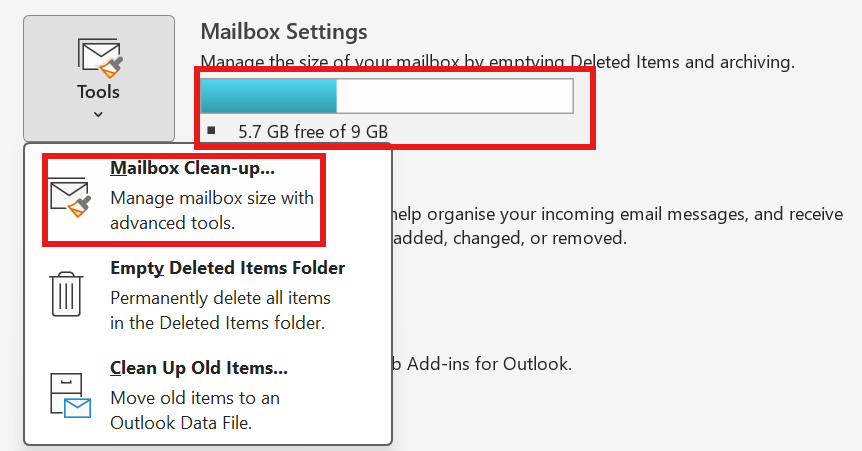
NOTE: You can see your storage size and capacity next to the 'Tools' symbol.
By default JSRACS staff are allocated 10gb of storage space for emails in Outlook
How to Check Your Mailbox Storage
- Open Outlook.
- Select File in the top left corner.
- Select Tools.
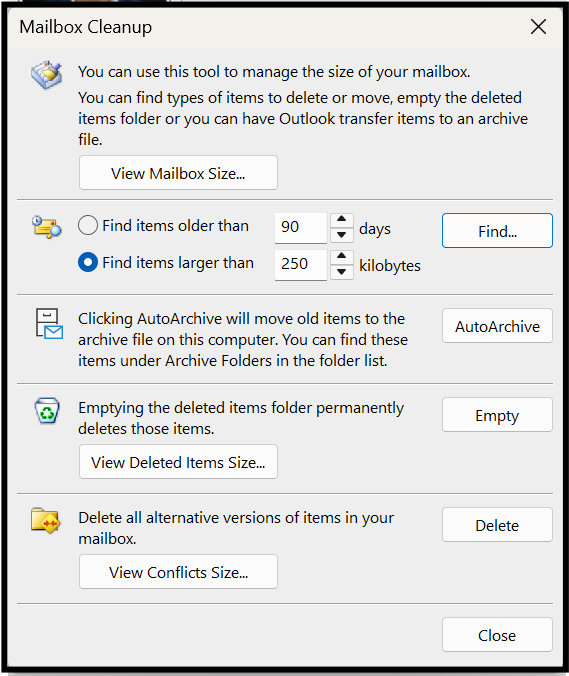
- Select Mailbox Cleanup.
- Review the storage information displayed.
Quick Ways to Free Up Space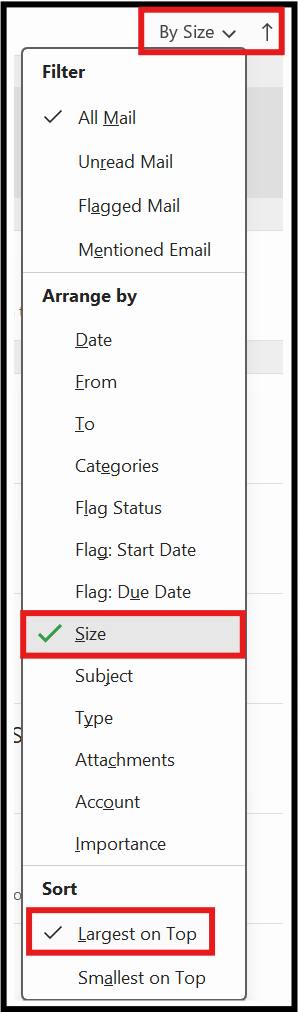
- Sort your inbox by 'Size' and save/delete anything that is no longer required in the inbox.
- Empty your Deleted Items folder.
- Delete emails with large attachments you no longer need.
- Save important attachments to OneDrive or your computer.
- Empty your Junk Email folder.
Need More Help?
If your mailbox is full or you are unable to send or receive emails, contact the ICT Helpdesk for assistance.