
Outlook rules can automatically sort, move or organise emails as they arrive in your inbox. For example, you can move emails from a specific sender into a folder or highlight important messages.
Create a Rule in Outlook
- Open Outlook.
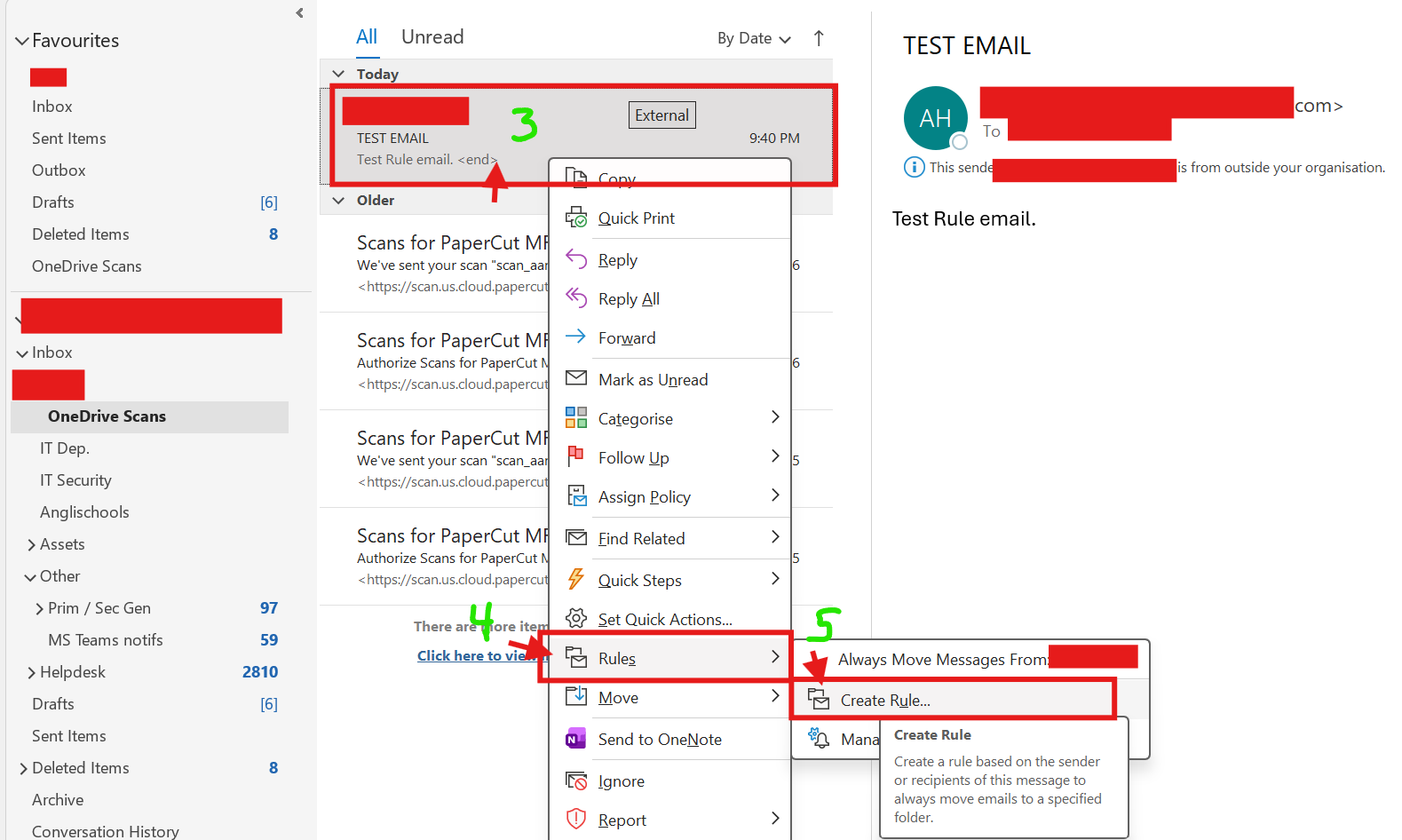
- Locate an email from the person or sender you would like to create a rule for.
- Right-click the email.
- Select Rules.
- Click Create Rule.
- Choose the condition you would like Outlook to use, such as:
- Emails from a specific sender.
- Emails sent to a specific group.
- Select what you would like Outlook to do with the email, such as:
- Move it to a folder.
- Display an alert.
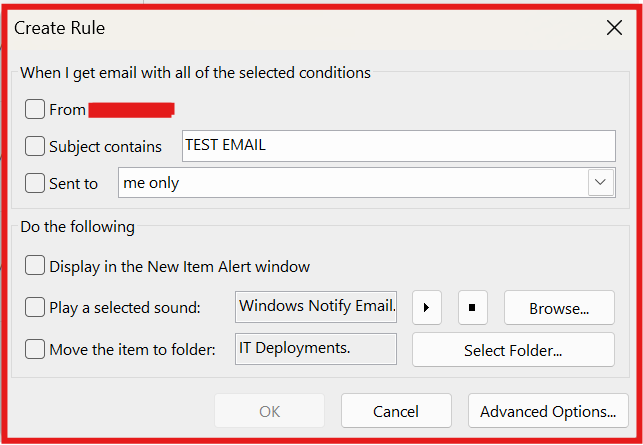
- Click OK.
- Select the folder where you would like the emails to be stored (if applicable).
- Click OK to save the rule.
Example.
You receive regular emails from a newsletter and want them moved to a folder automatically:
- Right-click one of the newsletter emails.
- Select Rules → Create Rule.
- Tick From [Sender Name].
- Tick Move the item to folder.
- Select or create a folder.
- Click OK.
Your emails from that sender will now be organised automatically.
Helpful Tip
Review your rules occasionally to make sure important emails are not being moved to folders you rarely check.